An official website of the United States government.

Here's how you know.

Official websites use .gov
A .gov website belongs to an official government organization in the United States.

Secure .gov websites use HTTPS
A lock () or https://means you've safely connected to the .gov website. Share sensitive information only on official, secure websites.


WildFireSA Advanced
The WildFireSA Advanced application is an integrated tactical and operational decision support tool used for wildland fires. WildFireSA Advanced combines a traditional "common operational picture" with collaborative mapping, geospatial and imagery analysis, and analytical reporting.
Open WildFireSA Advanced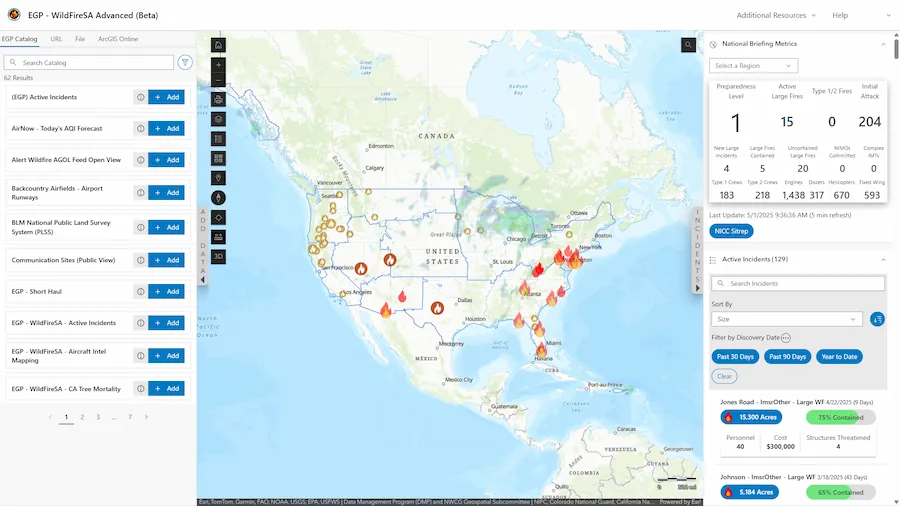
Training Materials
Training Videos
Click the open frame icon within the video to expand to full screen
WildfireSA Advanced Demonstration
FAQ
How can I access WildFireSA Advanced?
To access WildFireSA Advanced, log into the Enterprise Geospatial Portal (EGP), and then select the WildFireSA Advanced application. If you do not have an EGP account, you can request one by following the steps outlined in the EGP-FAMAuth User Guide.
Can I add my own layers into WildFireSA Advanced?
Yes, by using the Add Data widget you can add layers to the map using EGP's data catalog, shapefiles, URLs, or an ArcGIS Online account.
Where can I view Airborne Intel?
You can view Airborne Intel and imagery by using the Airborne Missions' widget, or by selecting an active incident from the Active Incident widget on the left of the screen. After selecting an active incident, scroll down to the Airborne Intel section and select the Video, Image, or Feature tab.
Why don't the Briefing Metrics match the SitRep?
EGP updates our assigned resource and incident counts every five minutes. Additionally, EGP calculates specific active incident fall off rules which differ from other systems. Therefore, to provide the most recent data, our counts will most likely differ from the sitrep, which is issued daily or weekly. We are in the process of refining our IRWIN queries and will provide more resource information updates in upcoming releases.
Resources (last row of dashboard) — Resource data is derived from IRWIN's resources schema. We are working to refine our queries to use the new IRWIN Active Resources dataset; therefore, counts may differ from other systems.
Metrics (First two rows of dashboard) — Metric data is derived from IRWIN and is generated using custom logic to get as close to the sitrep fields as possible; therefore, counts may differ from other systems.
How can I access WildFireSA Advanced on my mobile device?
Navigate to https://egp.wildfire.gov/sa, then Authenticate with your credentials.
How can I show EGP as an app on my phone?
NOTE: This process requires a login.gov account
- Navigate to https://egp.wildfire.gov/sa
- Use your credentials to Authenticate
- If you have an agency PIV card, you may use your mobile credentials via mobile link
- All other users will use a FAMAuth-linked login.gov
- On an Android, click the three dots to go to Settings. On an iPhone, click the Share button.
- On an Android, Click Install. On an iPhone, click Add to Home Screen.
- You can now access the site from the icon on your application screen
- To remove the app, you can uninstall like any other app by long pressing on the app tile
How can I share an incident?
You can share active incidents by selecting an incident from the Active Incidents widget then select the Copy Incident URL button.  The copied URL contains your current map view as well as the incident details.
Why is the layer I want to access greyed out and/or unable to be selected?
Some layers are available only at certain zoom levels. If your map view is zoomed out too far, the layer you wish to access may not be available. If this happens, adjust the zoom level until the layer becomes available.
Why is another mapping app or data source displaying information more quickly than WildFireSA Advanced?
WildFireSA Advanced is designed to pull data from multiple sources to provide the most comprehensive data available across all data sources. We are working with third-party sources that have a human component of data entry; therefore, there is sometimes a delay for receiving some datasets. We are working closely with our third-party partners to continue to improve the speed, accuracy, and overall performance of the WildFireSA Advanced application.
Why don't Active Incident Data and Perimeter Data always match?
Active Incident details and WFIGS location information come from reports submitted by various official sources, while WFIGS perimeter data is generated through spatial analysis. Because these datasets are created in different ways and serve different purposes, they're meant to complement each other—and occasional differences between them are expected.
Why does my Layers Menu reset every time I access EGP? Is there a way to save my customizations?
There is a Saved Map Presets feature available in WildFireSA Advanced. To save a new map preset, ensure you have the settings you would like to have selected, and then select the Save New Map Preset button. Enter a preset name and select SAVE.
Can I change the order of layers or adjust opacity so I can see one layer behind another?
To rearrange layers, click and drag the Reposition button.  To adjust a layer's opacity, select the layer's Opacity control and adjust the slider.
How can I search for specific coordinates on the map?
You can enter your desired coordinates into the search bar on the rightmost side of the map extent. Alternatively, you can adjust the latitude and longitude or zoom level of the map by adjusting the coordinates or zoom level within the URL bar.

How do I export/download maps?
You can export maps by using the Print button from the map toolbar.
When I double-click an end spot using the Measure Tool it does not stop the measurement.
Please ensure when using the Measure Tool that your endpoint does not overlap with one of the other nodes that you have dropped. For example, if you dropped multiple nodes and are ready to complete your measurement, ensure the selected endpoint does not overlap with any of the previously dropped nodes.